
The MTR Broker Management MCP is a read-only integration that connects an AI assistant (e.g. Claude or ChatGPT) to your Match-Trader environment. It lets you query data from MTR Manager and MTR Admin in plain language.
What the MTR Broker Management MCP does #
MCP (Model Context Protocol) is an open standard that lets an AI assistant call a defined set of functions exposed by an external system. Instead of relying on what the model “remembers”, the assistant works on live data from your Match-Trader server.
In practice: instead of opening several screens in Manager and Admin, exporting CSV files and combining them in a spreadsheet, you ask one question and the assistant runs the relevant queries for you.
| Production server | https://mtr-broker-management.match-trade.com/mcp |
| Actions available | 23, all read-only |
| Data covered | MTR Manager and MTR Admin |
| Access control | Token that you will be provided with on request |
| Supported AI Tools | Claude – web or desktop app (paid plan), ChatGPT desktop app (including free accounts), Claude Code, Codex, Cursor, and any other MCP-compatible application that lets you set a custom authorization header |
| Intended users | Full Server License clients |
The MCP does not modify anything on your server. It cannot create or edit accounts, change groups or rules, or process deposits and withdrawals – every tool only reads data.
What you can ask for #
Typical requests include:
- finding accounts by criteria such as group, client details, account type or access rights,
- checking balance, equity, margin, credit and profit for a single account or a whole group,
- reviewing open positions and active orders,
- comparing group and instrument settings, such as markups, swaps, commissions and leverage,
- checking trading sessions, holidays and the current status of symbols,
- retrieving current prices and historical candles,
- analysing ledger operations by account, group and date range,
- reviewing routing, hedging, exposure and abuse rules,
- listing special accounts and the rights assigned to them.
The assistant can combine several of these in a single request. For example, you can ask it to find all accounts in a group, retrieve their balances, positions and orders, and summarise the results.
Available actions #
All 23 actions are read-only. You do not need to name them in your prompts; the assistant picks them based on what you ask for. The list is here so you know what the MCP can and cannot reach.
| Area | Action | What it does |
|---|---|---|
| General | general_get_available_environments | Shows the environments available to your token and confirms the connection to the server. |
| Accounts | manager_read_list_account_ids | Searches and lists account IDs, filtered by group, client data, account type and access rights. |
| Accounts | manager_read_get_accounts_info | Returns details of the selected accounts, including group, currency and settings. |
| Accounts | manager_read_get_account_balances | Returns balance, equity, profit, margin and credit for accounts or for a whole group. |
| Orders | manager_read_get_active_orders | Returns active orders, with filters by account, group, symbol and order type. |
| Groups | manager_read_list_group_names | Searches and lists trading groups. |
| Groups | manager_read_get_groups_info | Returns the configuration of the selected groups, without per-symbol settings. |
| Groups | manager_read_get_groups_symbol_configurations | Returns instrument settings in groups, such as markups, swaps, commissions and leverage. |
| Instruments | manager_read_list_symbols | Searches and lists symbols. |
| Instruments | manager_read_get_symbols_info | Returns detailed information about the selected symbols. |
| Instruments | manager_read_get_symbols_sessions | Returns instrument trading sessions. |
| Instruments | manager_read_get_symbol_status | Checks the current session status of an instrument. |
| Instruments | manager_read_get_symbol_holidays_between | Returns instrument holidays in a given period. |
| Trading | manager_read_get_ledgers | Returns ledger operations for accounts, groups and a period. |
| Trading | manager_read_get_positions | Returns open positions, with filters by account, group and symbol. |
| Market data | manager_read_get_prices | Returns current prices for the selected symbols. |
| Market data | manager_read_get_candles | Returns historical candles for a symbol and interval. |
| Admin | admin_read_get_abuse_rules | Returns abuse rules for accounts and instruments. |
| Admin | admin_read_get_exposure_rules | Returns exposure limits matched to accounts, groups and instruments. |
| Admin | admin_read_get_hedge_rules | Returns hedging rules and their parameters. |
| Admin | admin_read_get_routing_rules | Returns routing rules, including activity, schedule and LP. |
| Admin | admin_read_get_special_account_details | Returns the full data of one special account and its manager rights. |
| Admin | admin_read_get_special_accounts | Searches and lists special accounts. |
Access, environments and security #
Access is controlled by a personal token. The token determines which environments you can access and whether you get Manager scope, Admin scope or both. To request a token, contact Match-Trade Broker Support.
The MCP performs no write operations of any kind. It does not create accounts, does not change groups, rules or configuration, and does not process deposits, withdrawals or trades. Anything that changes your system still goes through MTR Manager, MTR Admin or your usual request path.
Treat the token like a password. Do not share it, do not paste it into chat messages, tickets or screenshots, and use it only with the address https://mtr-broker-management.match-trade.com/mcp. If you believe the token has been exposed, contact us so that it can be revoked and reissued.
Before you connect, note that data returned by the MCP is sent to the AI provider and is processed under that provider’s terms. Check your own internal policy on sending client and trading data to external AI services, and confirm which environments your token should cover.
Connecting in Claude #
Option 1: the desktop extension (recommended)
The quickest way to connect is the MTR Broker Management extension for the Claude desktop application on Windows or macOS. It asks for your token during installation. Extensions exist only in the desktop application: the browser version at claude.ai has no Extensions section, so if you use Claude in the browser, go to Option 2 below. If you do not have the desktop application yet, you can download it from claude.com/download.
Download the ZIP file and unpack it. You only need the mtr-broker-management.mcpb file; the other files in the folder can be ignored. In the Claude desktop application open Settings, go to Extensions in the Desktop app group, and drag the mtr-broker-management.mcpb file onto that page.
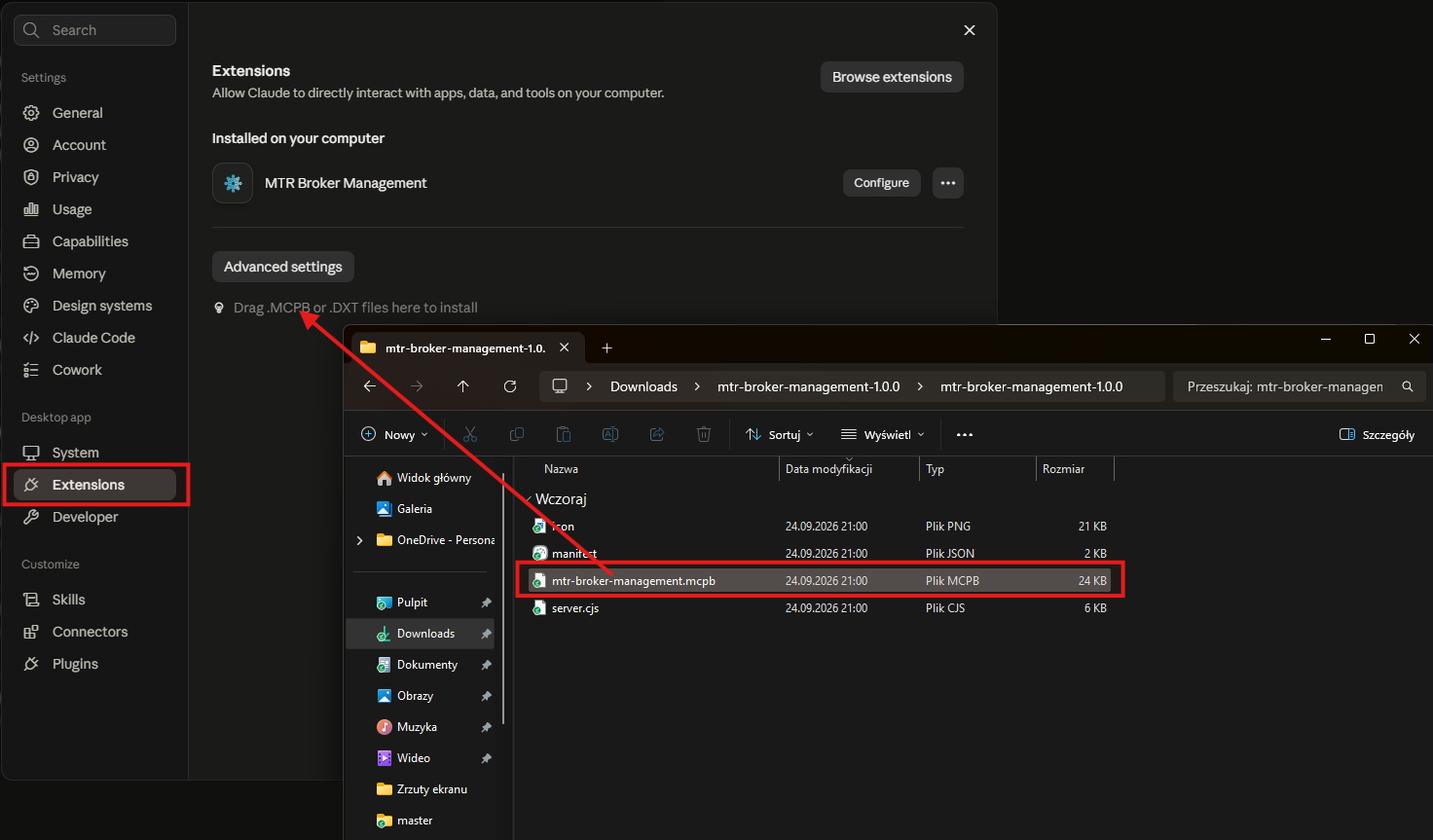
Claude then opens the installation window for the extension. When it asks for the Authorization token, enter the token on its own, without the word Bearer, because the extension adds it automatically. Once the installation is complete, the MTR Broker Management tools are available in your conversations.
Option 2: a custom connector (browser or desktop application)
Claude requires a paid plan, because the field in which the token is entered is not available on the Free plan. The procedure is identical in the browser at claude.ai and in the Claude desktop application, and the connector is stored in your account, so you add it once and it is available wherever you are signed in.
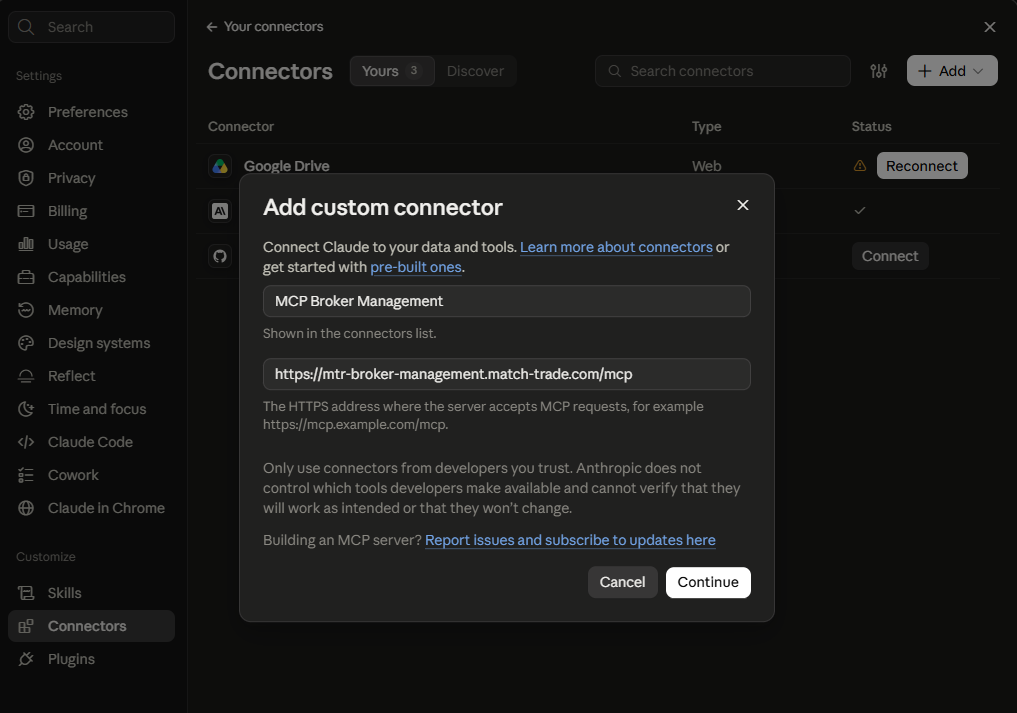
Open Settings, then go to Connectors in the Customize group, click Add, and choose to add a custom connector. Give it any name you like, for example MCP Match-Trade Technologies; enter https://mtr-broker-management.match-trade.com/mcp as the server address and click Continue.
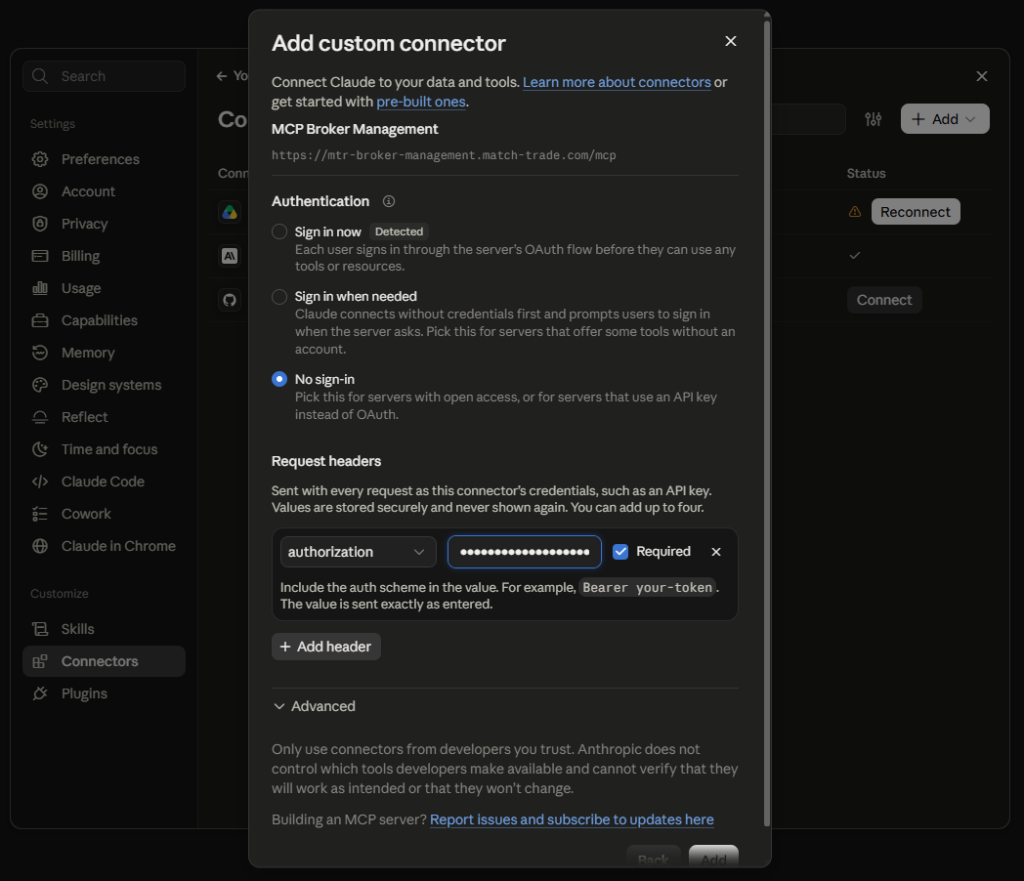
On the next step Claude pre-selects Sign in now, marked Detected. Do not use it, because this server does not use OAuth. Select No sign-in instead. In the Request headers section that appears, choose authorization as the header name and enter Bearer YOUR_TOKEN as the value, where YOUR_TOKEN is the token you received. Include the word Bearer and a single space in front of it, because the value is sent exactly as entered. Leave Required ticked, then click Add. Claude stores the value securely and never shows it again.
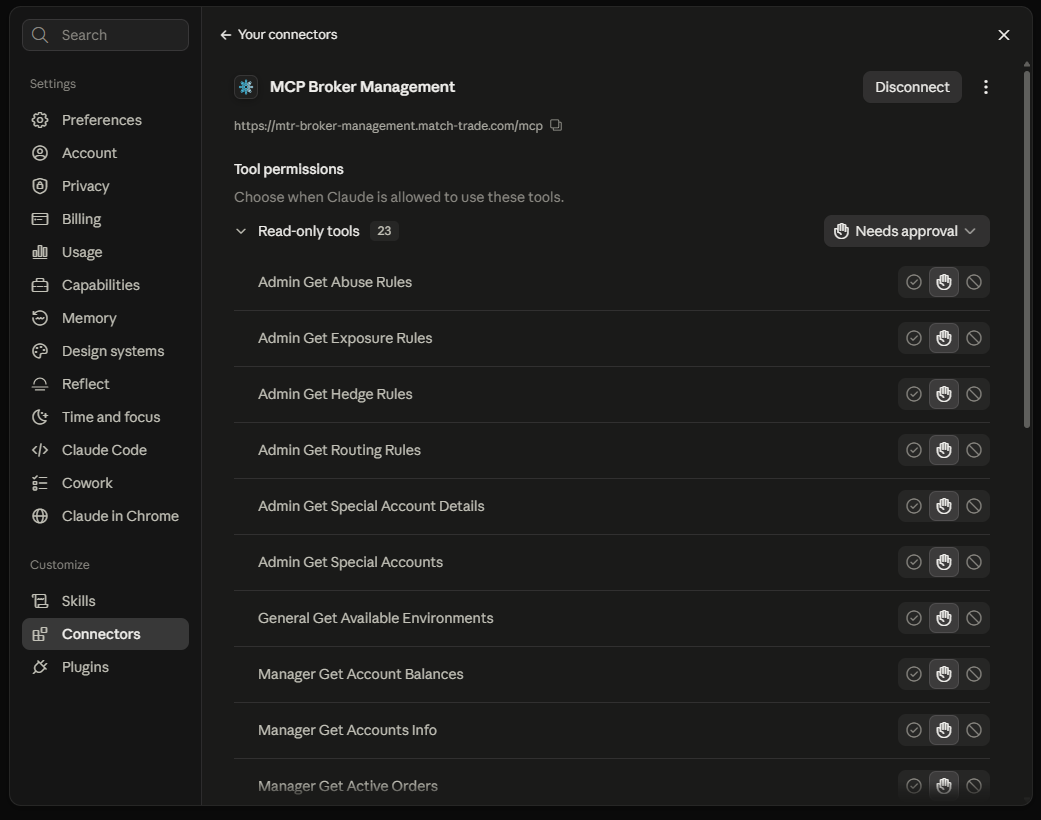
The connector now exists but is not yet active. Open it and click Connect. Once connected, the page shows a Disconnect button and lists the 23 read-only tools the server provides. If it reports instead that the connector has no tools available, the token was not accepted: remove the connector and add it again with the header value corrected, because authentication settings cannot be edited after a connector is saved.
The same page holds Tool permissions, where you decide when Claude may use each tool. By default every tool asks for approval before it runs. You can change this for a single tool or for the whole group at once, choosing between running it automatically, asking every time, and blocking it. Because all 23 actions only read data, running them automatically affects convenience rather than what the assistant is able to change.
Finally, open a conversation, click the + button, choose Connectors and switch the connector on. It has to be enabled in each conversation before Claude can use it. On Team and Enterprise plans an organization Owner may have to add the connector for the whole organization first, after which members only click Connect.
Connecting in the ChatGPT desktop application #
In ChatGPT the MCP works in the desktop application for Windows and macOS. A free account is enough; no paid plan is required. The browser version of ChatGPT cannot pass the access token in the form this server expects, so it cannot be used.
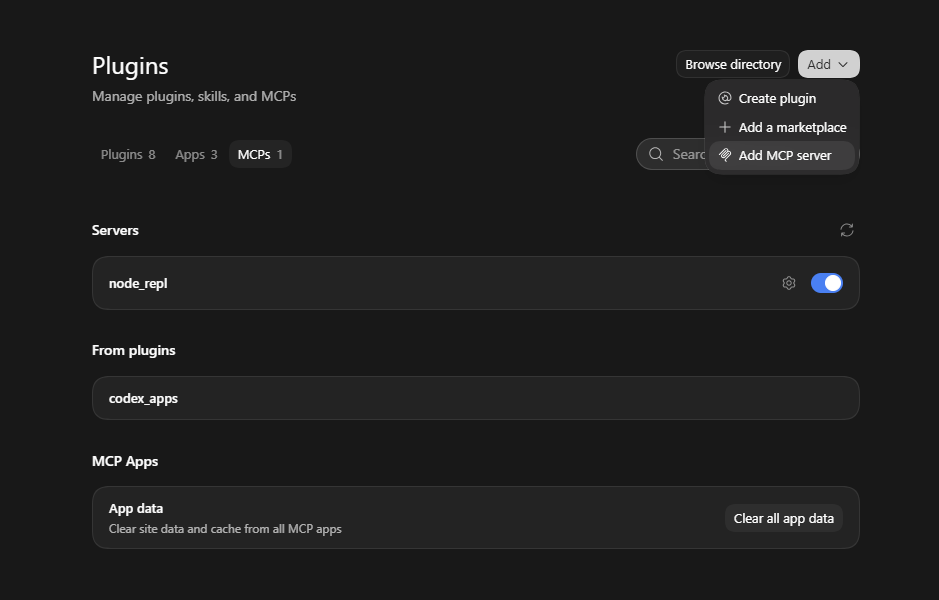
Open the desktop application and go to Settings, then Plugins in the Integrations group. In the top right corner open the Add menu and choose Add MCP server. This entry requires Developer mode; if you do not see it, turn Developer mode on under Settings > Security and login and open the menu again.
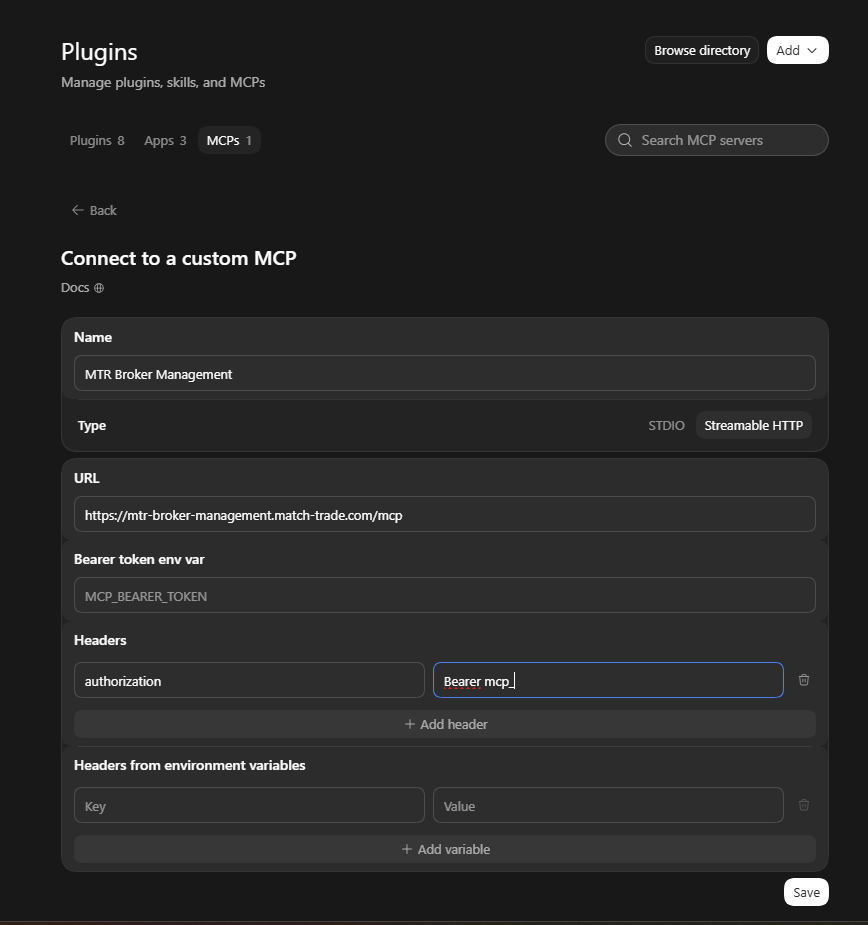
Fill in the Connect to a custom MCP form:
- Name — any label you like, for example MTR Broker Management
- Type — Streamable HTTP, not STDIO
- URL — https://mtr-broker-management.match-trade.com/mcp
- Bearer token env var — leave empty
- Headers — add one header with the key authorization and the value Bearer YOUR_TOKEN, where YOUR_TOKEN is the token you received. Keep the word Bearer and a single space in front of the token.
- Headers from environment variables — leave empty
Click Save. The server then appears on the MCP servers tab of the same Plugins screen, and its tools become available in your conversations.
To confirm that everything works in Claude or ChatGPT, start a new conversation and ask: “Using the MCP connector, list the environments available to me.” The assistant should return your environments, which confirms both the connection and the scope of your token. If it answers without using the server, name the connector explicitly at the start of your prompt.
Connecting in Claude Code #
Claude Code is Anthropic’s command-line tool and requires a paid Claude plan.
Step 1. Install Claude Code
If Claude Code is not installed yet, follow the installation instructions in the official Claude Code documentation: Claude Code quickstart.
Open a new terminal after the installation, so it picks up the updated system path, and check that Claude Code works:
claude --versionStep 2. Add the MTR Broker Management server
Run the command below. It works the same way in PowerShell, Command Prompt and macOS or Linux terminals. Replace <YOUR_TOKEN> with your token, and remove the angle brackets too.
claude mcp add --transport http --scope user MTR_Broker_Management https://mtr-broker-management.match-trade.com/mcp --header "Authorization: Bearer <YOUR_TOKEN>"Claude Code confirms that the server was added and shows the token as [REDACTED]. The --scope user option makes the server available in all your projects, not only in the current folder.
Step 3. Start Claude Code
Claude Code can read the files in the folder you start it from. For that reason, start it from a dedicated empty folder, not from your home folder:
mkdir ~/mcp
cd ~/mcp
claude
On first launch, Claude Code asks you to:
- choose a colour theme,
- sign in: choose the option for a Claude account with a subscription and log in in the browser window that opens,
- confirm that you trust the current folder: choose Yes, I trust this folder.
Step 4. Check the connection
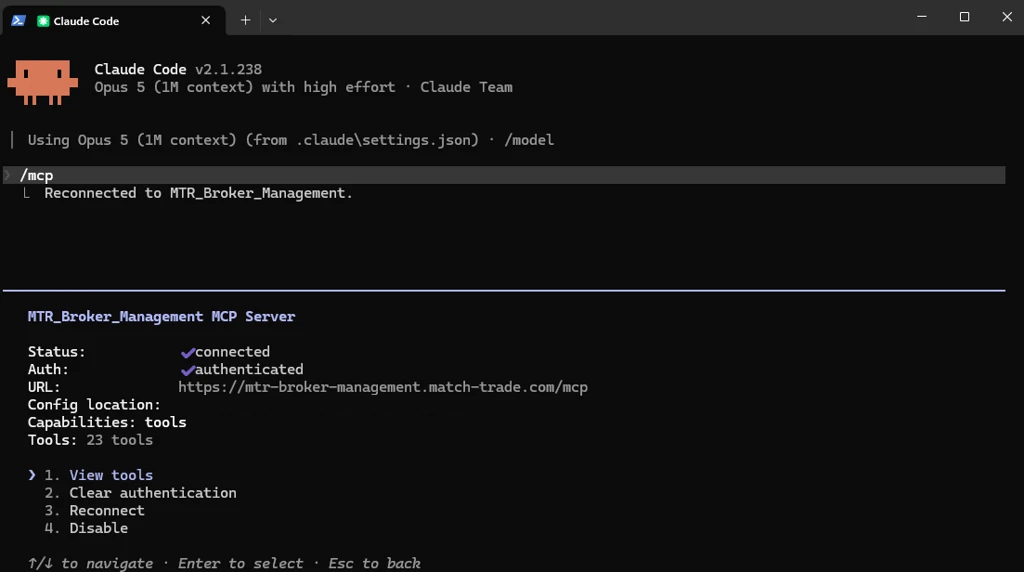
In the Claude Code window, type /mcp. This command only works inside Claude Code, not in a regular terminal. The MTR_Broker_Management server should be listed as connected, with 23 tools. If it is not connected, select it and choose Reconnect.
Claude Code saves the token in its own configuration file. To replace it with a new token, remove the server and then run the add command again with the new value:
claude mcp remove MTR_Broker_Management --scope userConnecting in Codex #
Codex is OpenAI’s coding agent. In Codex, your token is stored in an environment variable, not in the Codex configuration. Codex reads it from there each time it connects.
Step 1. Install Codex
If Codex is not installed yet, open a terminal and run the command for your system.
Windows (PowerShell):
powershell -ExecutionPolicy ByPass -c "irm https://chatgpt.com/codex/install.ps1 | iex"macOS and Linux:
curl -fsSL https://chatgpt.com/codex/install.sh | shWhen the installation finishes, close the terminal and open a new one. Then check the installation:
codex --versionStep 2. Save your token and add the server
Run the commands for your system. Replace <YOUR_TOKEN> with your token, and remove the angle brackets too. Enter the token only, without the word Bearer. Codex adds that word automatically, and if it appears twice the server rejects the connection.
Windows (PowerShell):
$env:MTR_BROKER_MANAGEMENT_TOKEN = "<YOUR_TOKEN>"
[Environment]::SetEnvironmentVariable("MTR_BROKER_MANAGEMENT_TOKEN", $env:MTR_BROKER_MANAGEMENT_TOKEN, "User")
codex mcp add MTR_Broker_Management --url "https://mtr-broker-management.match-trade.com/mcp" --bearer-token-env-var MTR_BROKER_MANAGEMENT_TOKEN
codex mcp get MTR_Broker_Management
What each line does:
- sets the token for the current terminal,
- saves it permanently for your Windows user, so every new terminal has it too,
- adds the server to Codex,
- shows the saved configuration so you can check it.
macOS and Linux:
export MTR_BROKER_MANAGEMENT_TOKEN="<YOUR_TOKEN>"
codex mcp add MTR_Broker_Management --url "https://mtr-broker-management.match-trade.com/mcp" --bearer-token-env-var MTR_BROKER_MANAGEMENT_TOKEN
codex mcp get MTR_Broker_Management
If you want the token to be available in new terminal sessions, also add the export line to your shell profile, for example ~/.zshrc or ~/.bashrc.
Step 3. Start Codex
Run codex. As with Claude Code, it’s best to start it from a dedicated empty folder. On first launch, choose Sign in with ChatGPT and log in in the browser window that opens. OpenAI recommends a ChatGPT Plus, Pro, Business, Edu or Enterprise plan.
Step 4. Check the connection
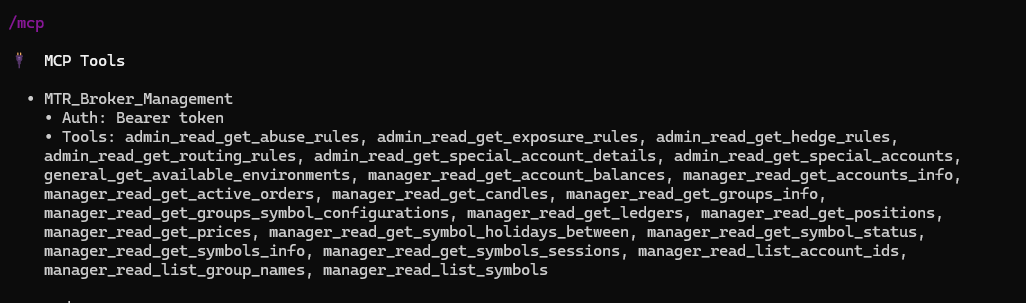
In the Codex window, type /mcp. This command only works inside Codex, not in a regular terminal. MTR_Broker_Management should be listed with Bearer token authentication and 23 tools.
If Codex was already running when you set the variable, restart it so it picks up the token.
Updating the token: when you receive a new token, run only the lines that set the variable. You don’t need to add the server again.
Other MCP clients #
Any other client that can connect to a remote MCP server and send a custom header, such as Cursor, works as well. Wherever the client asks for connection details, use these three values:
- Server URL — https://mtr-broker-management.match-trade.com/mcp
- Transport — Streamable HTTP, sometimes labelled simply HTTP
- Header — authorization, with the value Bearer YOUR_TOKEN
A client that offers only OAuth sign-in, with no way to add a custom header, cannot connect to this server. That is why the browser version of ChatGPT is not supported.
Writing good prompts #
A good prompt has four elements: the environment, the object or filter, the result you expect, and the format of the answer.
Examples, with ENVIRONMENT replaced by the name of your environment:
- On ENVIRONMENT, show the account balances for group testUSD. Return a table with clientId, balance, equity, profit, margin and credit.
- On ENVIRONMENT, compare the EURUSD configuration in groups testMTR and testUSD. List only the differences.
- On ENVIRONMENT, show the active routing rules for group X and symbol EURUSD, and explain where the orders are sent.
- On ENVIRONMENT, check the sessions, holidays and current status of XAUUSD.
- On ENVIRONMENT, find the special accounts allowed to edit historical data and show which groups they can serve.
The assistant can run several actions in sequence to answer one prompt, for example finding the accounts in a group, then pulling their balances, positions and orders, and finishing with a summary.
Two habits make the answers better. Always name the environment, because a token can cover more than one. And state the output you want, such as a table with named columns, a list of differences only, or a short summary.
Check any figure you intend to act on. The MCP returns source data, but the text around it is written by the AI assistant, which can summarise or label it incorrectly. For anything that drives a decision, confirm it in MTR Manager or MTR Admin.